


22 June 2026
UI/UX overhaul for classic British toy company
Classic British toy company Hornby had recently developed a new Bluetooth based interactive race system for their Scalextric brand. The aim was to redesign the product to make it more usable, clearer to understand and delightful for users, whilst minimising the amount of redevelopment needed.
Problem statement
The technology had been developed in-house, with a mobile app created by a 3rd party. The app enabled basic functions but suffered from poor UI design and numerous usability issues. How might we improve the visual appeal of the product, whilst also improving the usability?

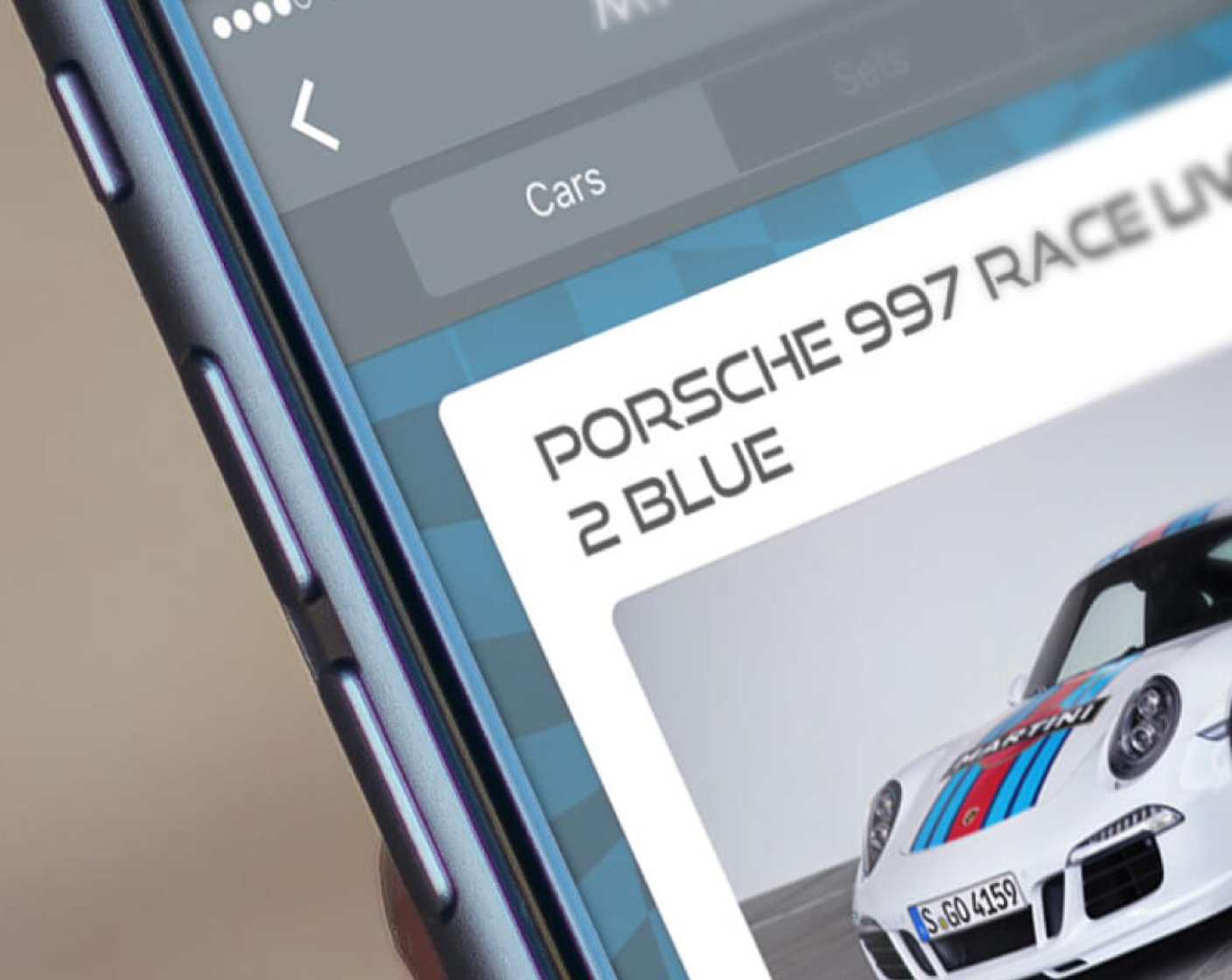
Interviews, UI / UX audits
Time and budget constraints meant that improvements User Experience, as well as the visual treatment of the interface came with the added restriction of minimal changes to the existing features. First, we spoke with users and carried out an audit of the existing product, to understand the problems and figure out the best approach.
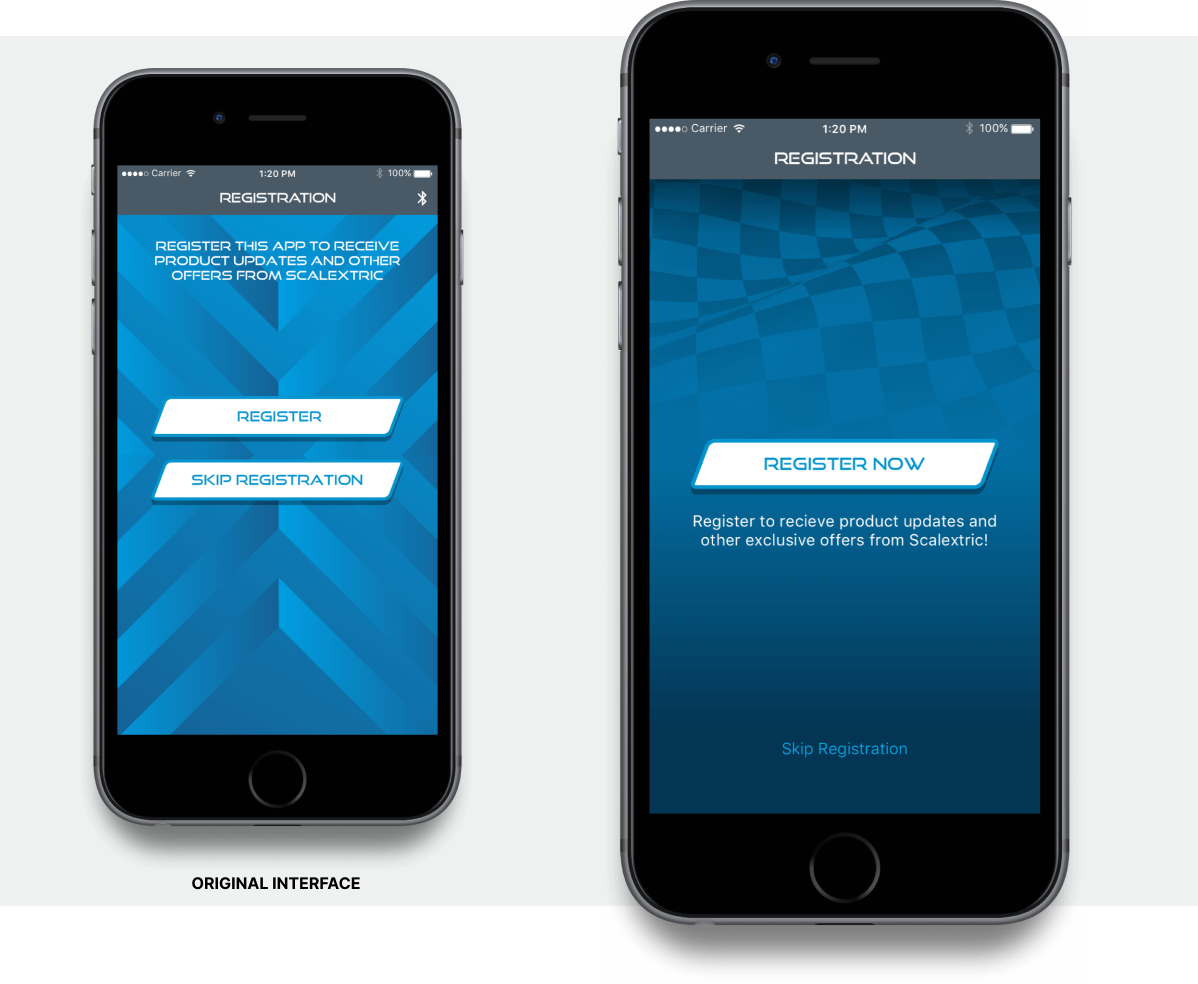
Navigation hierarchy
There was no visual hierarchy between the register, or skip registration buttons. Hornby wanted people to register - so we gave prominence to this button. The skip button was made smaller and less prominent, yet still clear within the interface.
There was a disconnect between the registration button and the text explaining it, due to the distance between them. This was easily solved by placing the text within closer proximity, just beneath the button. For anyone interested in knowing more about this kind of thing, check out the Laws of Proximity.
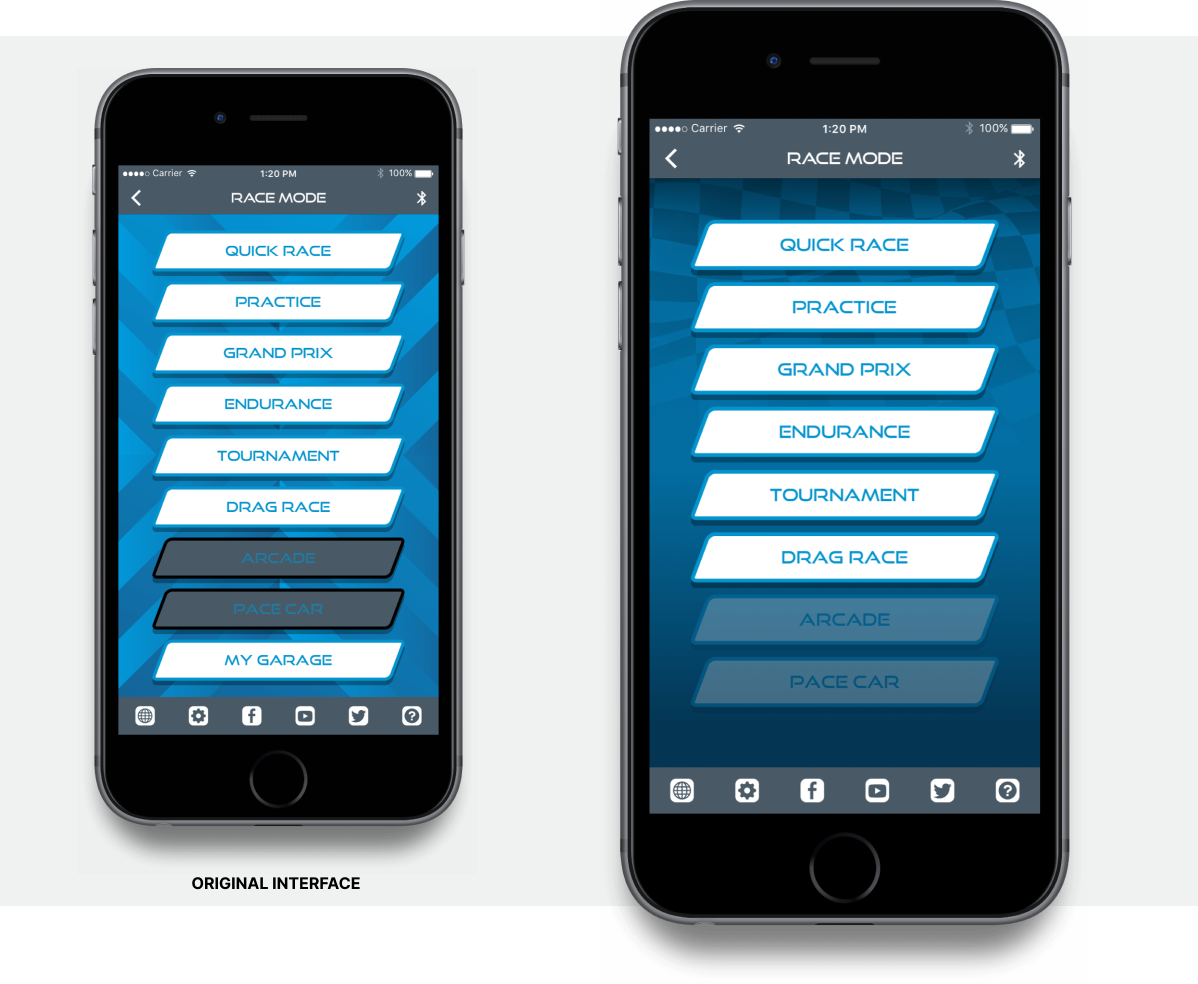
Clarity of button states
The disabled states of the existing buttons were visually just as dominant as the active buttons - leading to confusion among users. To combat this problem, I altered the style of these buttons by reducing the opacity and making them visually more subtle than the active state buttons.
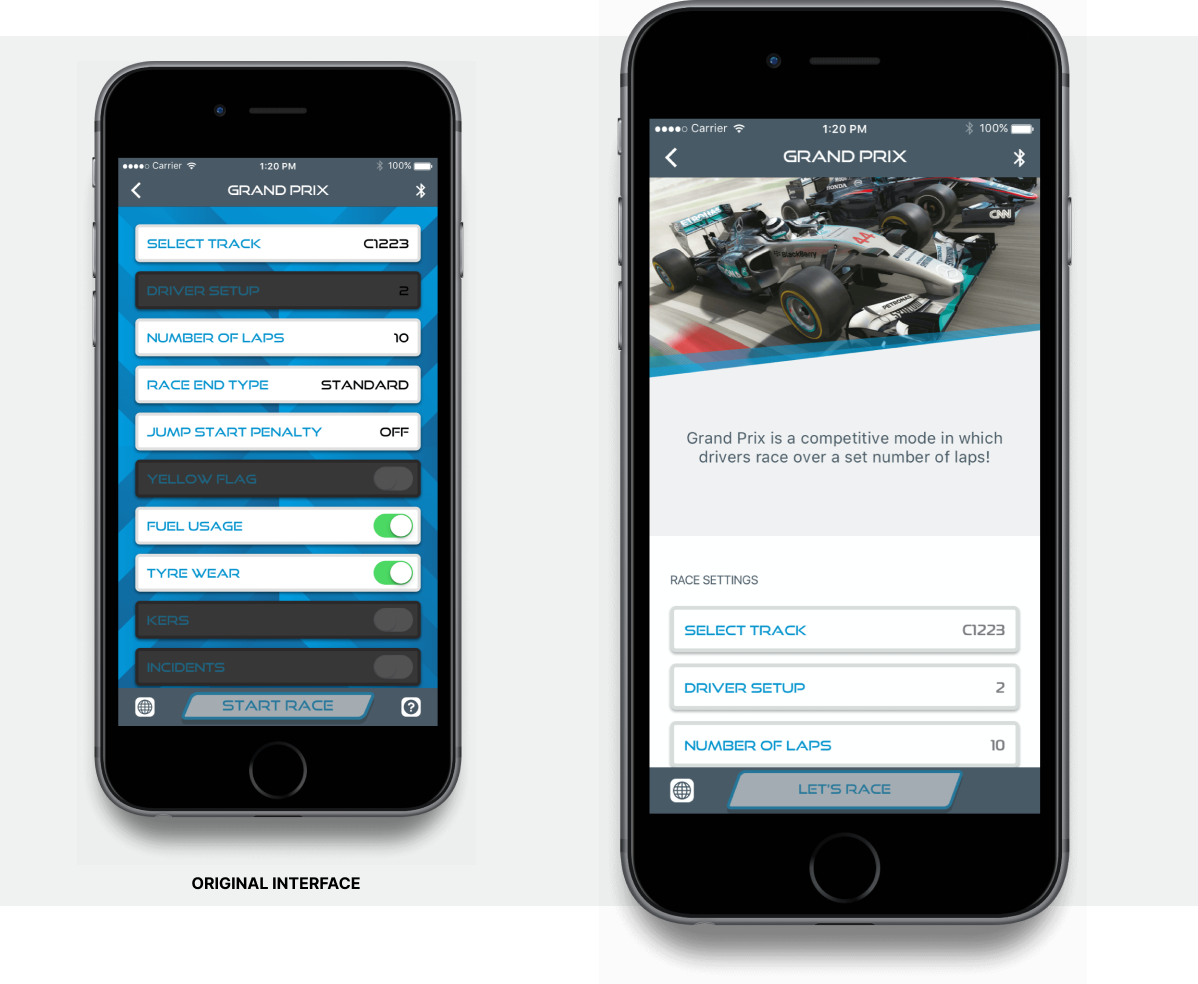
Visually zoning areas of functionality
Every race type screen looked the same, containing just a list. There were no visual cues as to what type of race the user had chosen. To get an overview of the race type, users had to tap a small question mark icon.
By introducing an image, with explanation text, each race type suddenly had “visual identity” - allowing the user to easily understand what race type they had selected. No functionality was changed.
The race settings options simply moved down the screen a little, and given the label “Race Settings”.
Placing text that was previously hidden behind the question mark icon, adds further clarity. The assumptions were proven when user testing revealed quicker identification of the race type using the new design.
Adding visual clarity
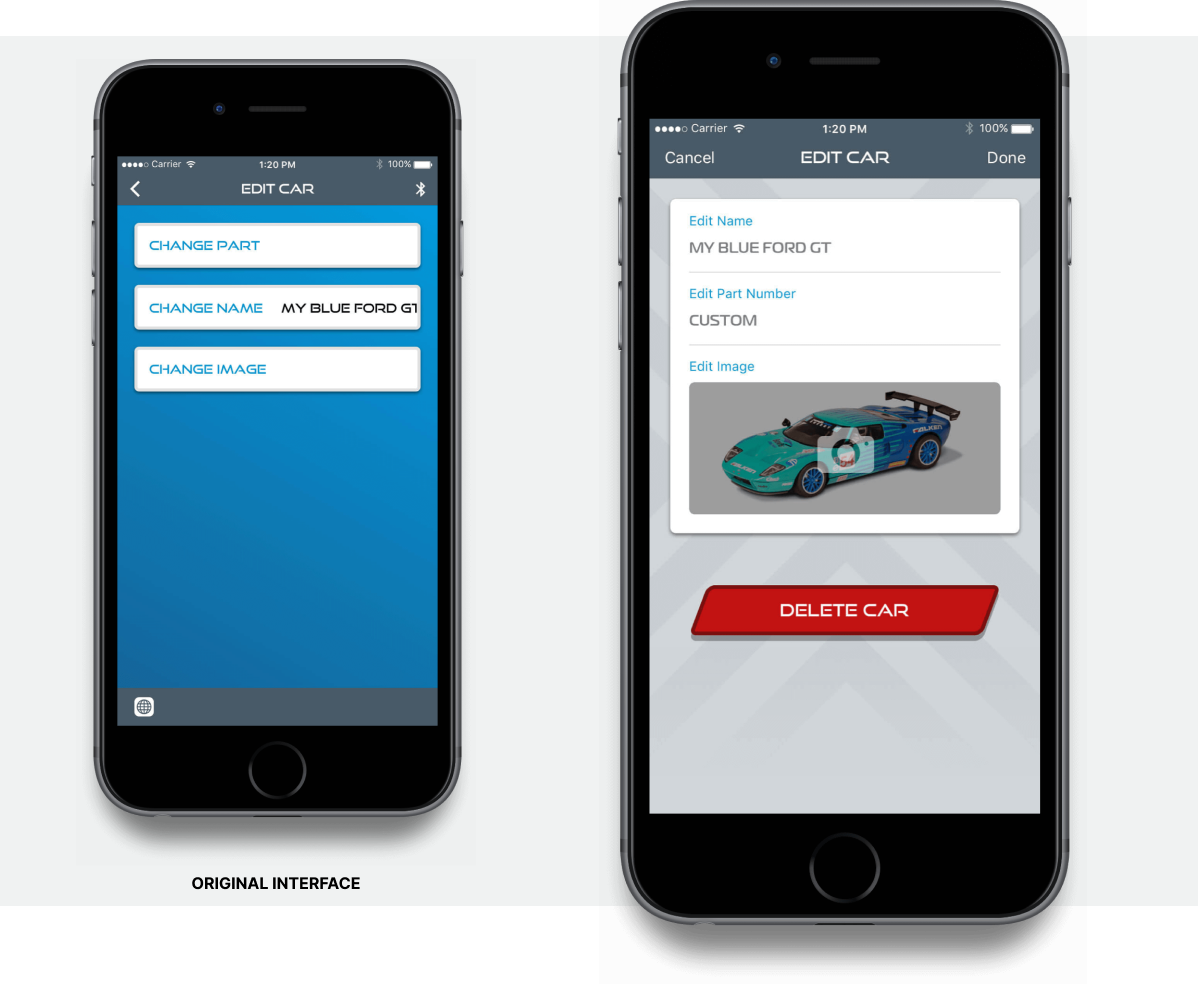
Another area that benefitted from similar visual zoning was the editing function. In the existing app, all of the editing modes, looked like any other menu screen within the app. The simple introduction of a grey background gives the user a visual cue, that enabled them to quickly identify they are within an edit mode.
I also added a quick, clear and obvious button to delete an item.
Conclusion
These are just a few examples of the major improvements I was able to make to the app, even though the changes themselves were not major overhauls of the base functionality.
We were able to improve the usability and understandability of the product, using a variety of design methods. Even the simple process of making the product more visually appealing helps towards improving the user’s perception (see Jakob’s Law).
The result was an app that looked more professional and visually appealing. Feedback from test groups confirmed that it was easier to understand and use.
I enjoyed working on this project due to its restricted nature. We were able to make simple changes that vastly improved the usability. User experience does not have to be rocket science 🚀.